The Best Fluffy Pancakes recipe you will fall in love with. Full of tips and tricks to help you make the best pancakes.
10 Reasons Your Phone Speaker Is Not Working and How to Fix It

A phone speaker that suddenly stops working can mean a lot of different things. Sometimes it’s completely silent. Sometimes it’s just very quiet, or the sound cuts in and out, or it works fine for calls but not for videos. The cause can be as simple as a volume setting or as serious as internal hardware damage.
Before assuming the worst, it’s worth working through the common causes in order, because most of the time, the fix is something you can handle yourself in a few minutes.
Here are the most likely reasons a phone speaker stops working properly, then a practical sequence of steps to narrow down and fix the problem:
Why Is My Phone Speaker Not Working?
“My phone speaker is not working” can actually describe several different symptoms, and the right fix depends on which one you’re dealing with:
- Completely silent — no sound at all, from any app
- Very low volume — sound is there, but much quieter than normal
- Intermittent sound — audio cuts in and out unpredictably
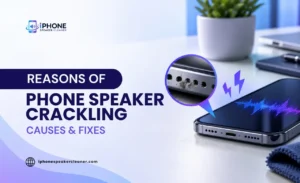
- Distorted sound — crackling, buzzing, or muffled audio
- Works in one app but not another — for example, fine in a music app but silent during video playback
- Works for calls but not media, or the reverse — since phones often use different audio paths for calls versus media playback
Identifying which of these matches your situation is the first step, because it points toward different causes. Here are the ten most common ones.
Reasons Your Phone Speaker Is Not Working
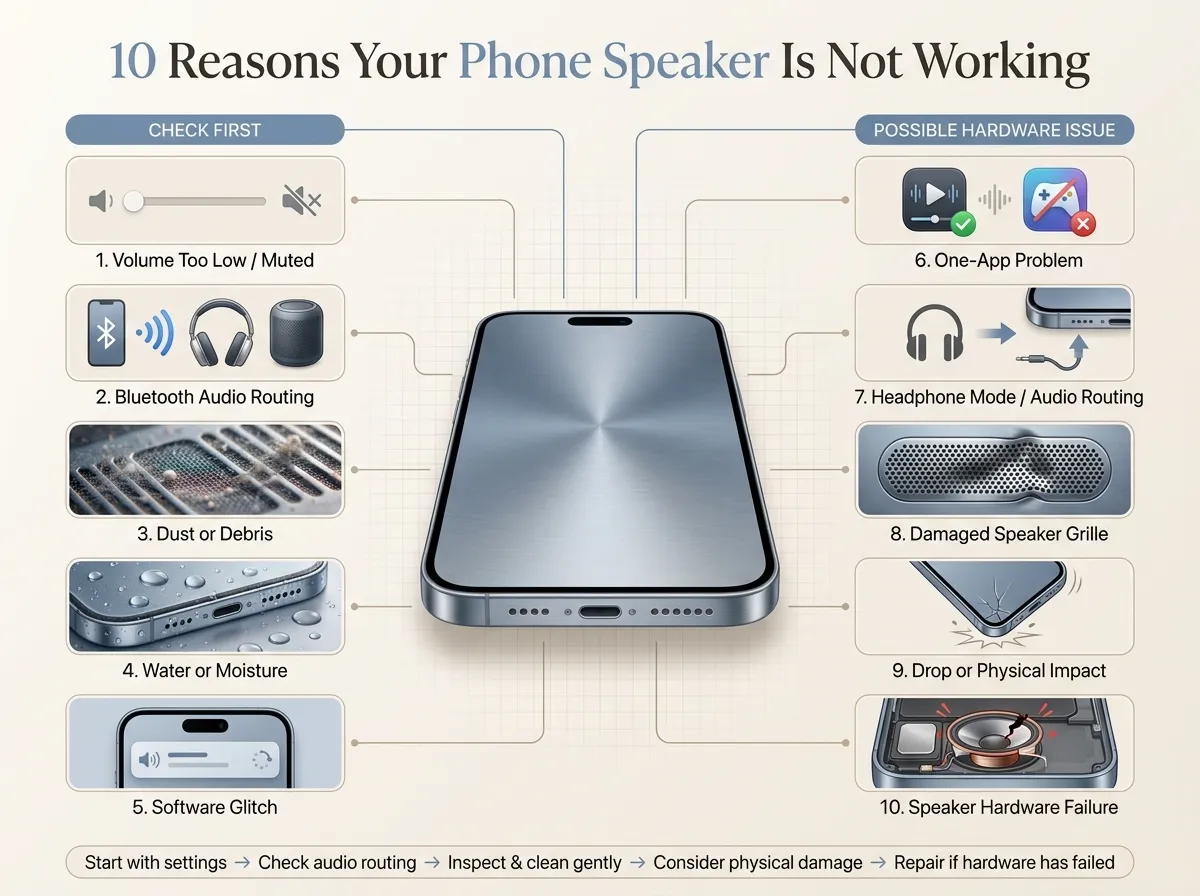
Here are the below 10 reasons your phone speaker is not working:
1. Your Phone Is Muted, or the Volume Is Too Low
This sounds obvious, but it’s the most common cause by a wide margin. Phones often have separate volume controls for media, ringtones, calls, and notifications; it’s easy to turn one down without realizing the others are unaffected.
Check the physical volume buttons, any on-screen volume sliders, and confirm the phone isn’t in silent or Do Not Disturb mode, which can mute media and notification sounds even while calls still work normally.
2. Audio Is Being Sent to Bluetooth or Another Device
If your phone is paired with a Bluetooth speaker, headphones, a car system, or a smart display, audio may be routing there instead of the built-in speaker — even if that device is out of range or turned off. Open Bluetooth settings and check for any connected device. Disconnecting or forgetting it will send sound back to the phone’s own speaker.
3. Dust or Debris Is Blocking the Speaker
Lint from pockets, everyday dust, and small debris can build up in the speaker opening over time and muffle or block sound. This tends to happen gradually, so the audio often gets progressively quieter rather than cutting out all at once.
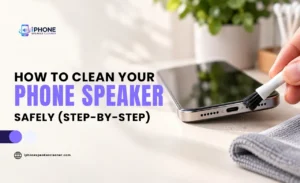
A soft brush or a piece of low-tack tape pressed gently over the opening can lift out loose particles. Avoid poking anything into the speaker holes; sharp objects can push debris deeper or damage the fine mesh sitting just behind the opening.
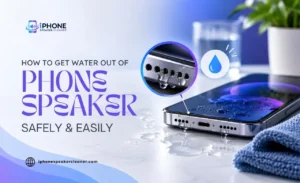
4. Water or Moisture Has Reached the Speaker
Splashes, rain, sweat, or a drop of water can leave the speaker sounding muffled, quiet, or distorted, even after the phone itself seems dry on the outside. Moisture trapped in the opening interferes with the diaphragm’s ability to vibrate properly.
This usually improves once the phone fully dries out, though it can take longer than expected — and not every moisture issue resolves the same way, so persistent muffling after water exposure is worth monitoring closely rather than assuming it will clear on its own.
5. A Temporary Software Glitch Is Affecting Audio
Phones occasionally run into small software hiccups that affect audio output without any obvious cause. A restart clears a surprising number of these issues because it resets audio processes and settings that may have gotten stuck. If your speaker was working normally and then abruptly stopped with no physical cause, this is one of the first things worth ruling out.
6. The Problem Is Limited to One App
If sound works in some apps but not others, the hardware itself is probably fine — the issue is more likely with that specific app’s settings or permissions. Some apps have their own internal volume or mute controls separate from the phone’s system volume. Testing a different app is a quick way to tell whether you’re dealing with a hardware problem or an app-specific one.
7. Audio Routing or Headphone Mode Is Causing the Problem
Sometimes a phone gets “stuck” thinking headphones are still plugged in, even after they have been removed; this is more common with phones that have had moisture in the headphone jack or a loose connection. When this happens, the system keeps routing audio away from the speaker. Unplugging and replugging headphones, or toggling Bluetooth off and on, can reset this routing.
8. The Speaker Grille or Opening Is Damaged
Physical damage to the grille itself, a crack, a dent, or a warped opening, can affect how sound waves travel out of the speaker even if the internal components are undamaged.
This is different from a simple blockage and usually happens after a drop, pressure damage, or an impact. Visually inspecting the speaker opening under good light can help you tell the difference between debris and actual damage.
9. The Phone Was Dropped or Physically Damaged
Impact from a drop can jar or damage internal speaker components, even when the outside of the phone looks fine. This might show up immediately after the drop or develop gradually as a loose connection worsens over time. If speaker problems started right after a drop, that timing is a strong clue about the cause.
10. The Speaker Hardware Has Failed
After ruling out settings, software, debris, and moisture, a speaker that remains silent or severely distorted may simply have failed internally; the diaphragm, coil, or wiring inside the speaker component can wear out or break, especially in older phones.
No amount of cleaning or software troubleshooting fixes an actual hardware failure. At that point, a professional repair or replacement is usually the only real option.
How to Fix a Phone Speaker That Is Not Working
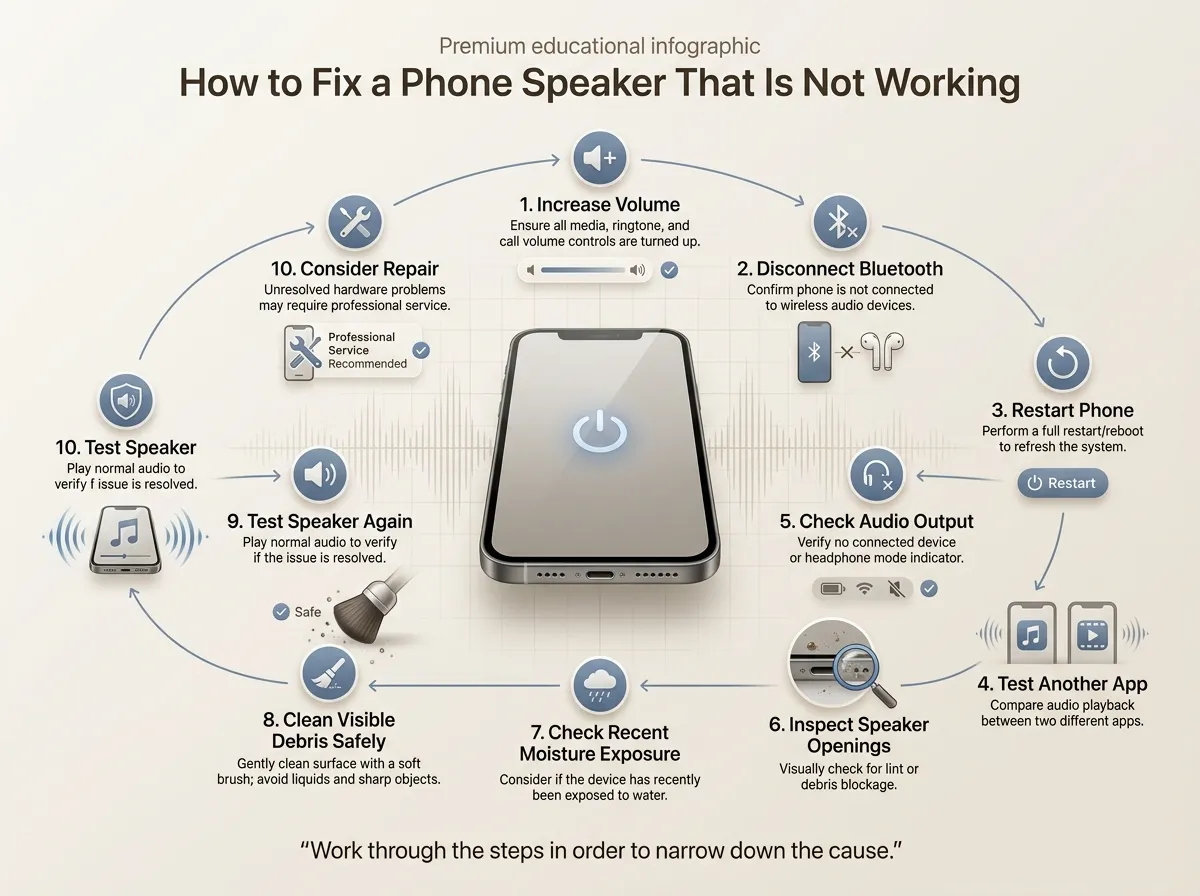
Once you understand the possible causes, working through them in order is the fastest way to find your specific fix:
- Increase the volume — check media, ringtone, and call volume separately, and confirm silent mode is off.
- Disconnect Bluetooth devices — turn off Bluetooth entirely for a moment to force audio back to the built-in speaker.
- Restart the phone — this clears many temporary software glitches affecting audio.
- Test another app — play sound in a different app to check whether the issue is app-specific.
- Check the audio output — look for any “connected” audio devices or headphone icons in your settings.
- Inspect the speaker openings — look closely for visible dust, lint, or debris.
- Consider recent water or moisture exposure — think back to any splashes, rain, or drops in liquid over the past day or two.
- Clean visible external debris safely — use a soft brush or gentle tape method; skip anything sharp or wet.
- Test the speaker again — play audio at a normal volume to see whether anything has changed.
- Consider repair if the problem remains — if none of the above helps, the issue is likely physical or hardware-related.
Working through these steps in sequence usually narrows the problem down within a few minutes, rather than guessing at a fix.
How to Test Your Phone Speaker
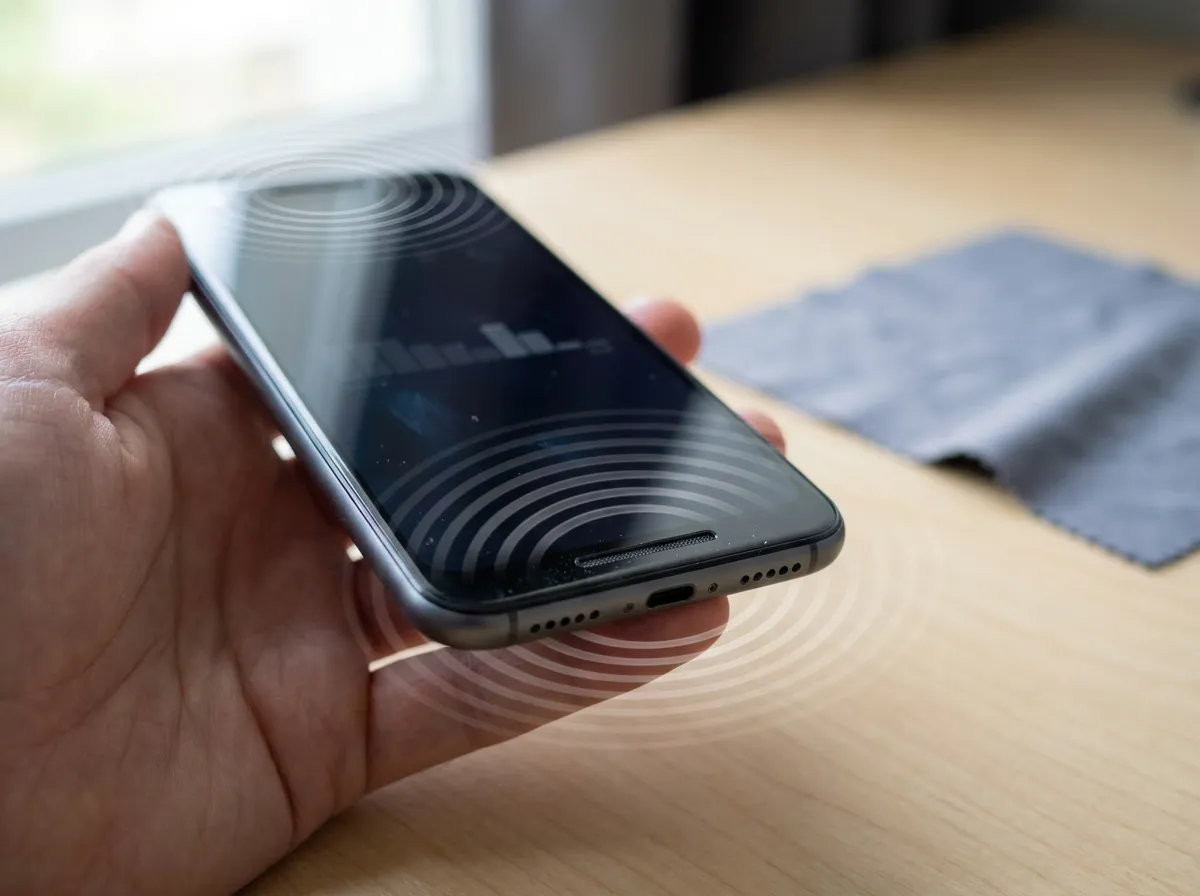
After making a change, cleaning the speaker, adjusting a setting, or restarting the phone, it helps to test the speaker properly rather than just assuming it’s fixed. A good test plays sound across a range of frequencies and volumes, since some problems (like partial blockages or minor damage) only show up at certain pitches or volume levels.
Want to check whether your phone speaker is producing sound correctly? You can run a quick check using the speaker test tool at iPhone Speaker Cleaner, which plays test audio so you can listen for gaps, distortion, or uneven volume across both speakers if your phone has more than one.
Can Cleaning Fix a Phone Speaker That Is Not Working?
Cleaning helps with some causes and does nothing for others, so it’s worth being realistic about what it can address:
- Dust or debris blockage — cleaning is often the direct fix here, since removing the obstruction restores normal sound.
- Lint around the speaker grille — same story; a soft brush or tape usually clears this effectively.
- Moisture-related sound issues — cleaning combined with proper drying time can help, and an audio-based tone method may assist in nudging trapped water out.
- Software or settings problems — cleaning won’t touch these at all, since the hardware isn’t actually the issue.
- Physical speaker damage — cleaning cannot repair a cracked grille, damaged diaphragm, or bent component.
- Hardware failure — no cleaning method, physical or audio-based, can fix a speaker that has genuinely stopped functioning internally.
If dust or moisture may be affecting your speaker, you can also try the Phone Speaker Cleaner tool as one step in the process. It’s built around an audio tone that can help with moisture-related muffling; it’s not a fix for physical debris on its own, and it won’t repair a speaker that has actual hardware damage.
Think of it as a useful tool to try alongside the physical steps above, not a replacement for them.
Phone Speaker Not Working on Android
Android troubleshooting follows the same general logic, though the exact settings menus vary quite a bit between manufacturers and Android versions.
If your speaker isn’t working on an Android phone, start with the basics: check media volume specifically (Android often separates it from ringtone volume), confirm Bluetooth isn’t connected to another device, and restart the phone.
Many Android phones also have a “sound and vibration” or “audio” settings menu where accidental changes — like an equalizer setting or a “media output” selection — can silently redirect audio.
If your speakerphone isn’t working specifically during calls, check whether the phone is somehow still in “earpiece” mode rather than switched to speaker during the call, since some devices default back after being connected to Bluetooth. Because Android covers so many different phone brands, exact menu names and steps will differ if the general checks above don’t resolve it, your specific manufacturer’s support pages can usually confirm where audio output settings live on your model.
If dust or moisture seems to be the culprit on an Android device, the Android Speaker Cleaner tool is worth trying as a quick next step; same idea as the cleaning process covered earlier, just accessible directly from your phone’s browser.
Phone Speaker Not Working on iPhone
The same fundamental checks apply on iPhone, with a few Apple-specific things worth confirming. Start with the physical mute switch on the side of the phone, along with the volume buttons; it’s easy to bump the switch accidentally.
Check Control Center for any active Bluetooth or AirPlay connection that might be routing audio elsewhere. If sound is missing specifically during calls, confirm the call isn’t set to route through a paired Bluetooth device or CarPlay.
Restarting the phone resolves a fair number of unexplained audio drops. If the speaker openings look like they have visible buildup, inspect them closely under good light and use only soft, dry cleaning methods.
And if moisture exposure is a possibility a splash, rain, or a brief drop in water- give the phone time to fully dry before assuming the speaker itself is damaged, since some muffling from moisture resolves on its own once it evaporates.
When Does a Phone Speaker Need Repair?
Not every speaker problem is something you can fix at home, and it helps to know when to stop troubleshooting and get it looked at professionally.
Temporary software or settings issues, blocked openings, and mild moisture exposure are all things you can usually resolve yourself with the steps above. Physical damage and true hardware failure are a different category entirely.
Signs that professional repair may be worth considering:
- No sound at all after working through every basic troubleshooting step
- Visible physical damage to the phone or speaker grille
- Distortion or crackling that doesn’t improve after cleaning
- Sound that got noticeably worse after a drop
- Liquid damage beyond a light splash, especially full submersion
- A speaker that remains completely silent regardless of app, volume, or connection
If any of these match your situation, further DIY attempts are unlikely to help and could risk making things worse.
Final Troubleshooting Checklist
Before deciding your phone speaker needs repair, confirm you’ve worked through each of these:
- Volume checked (media, ringtone, and call volume separately)
- Bluetooth disconnected
- Audio output checked for other connected devices
- Phone restarted
- Different apps tested
- Speaker opening inspected for visible debris
- Recent moisture exposure considered
- Speaker cleaned safely using dry methods
- Speaker tested after each change
- Repair considered if the problem remains
Most speaker problems trace back to something simple: a setting, a connection, or a bit of buildup, and clear up within a few of these steps. When they don’t, that’s useful information too: it points toward a physical or hardware cause that’s better handled by a repair professional than by continued troubleshooting at home.