The Best Fluffy Pancakes recipe you will fall in love with. Full of tips and tricks to help you make the best pancakes.
Laptop Speaker Cleaner
Fix muffled laptop sound instantly. Use targeted resonant sound waves calibrated to eject water spills, dust, and crumbs from laptop speaker grilles.
140 Hz
Laptop Driver Pulse
STANDBY
Generating Tone...
00:00
Tilt laptop slightly toward grille vents while running
100% Safe
All Laptops & OS
Acoustic Physics
Maximum Air Displacement
The Science
How Does a Laptop Speaker Cleaner Work?
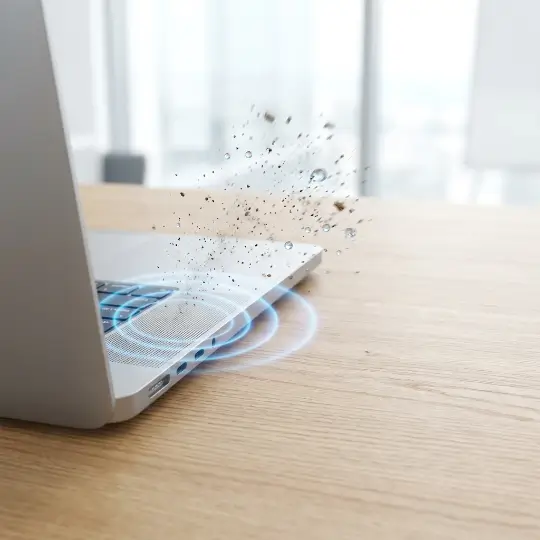
Laptop audio relies on compact micro-transducers installed either beneath keyboard decks or along chassis vents. When water spills or dust clogs these micro-perforations, sound becomes heavily muffled or distorted.
Our tool generates a calibrated 140Hz acoustic wave with a 70Hz sub-octave tone. This frequency matches the mechanical resonance of laptop speaker chambers, pushing the driver cone to maximum safe excursion and creating high-velocity outward air pulses that eject water and dislodge dry debris.
Note: While highly effective for surface moisture and dry dust, sound waves cannot repair physical membrane tears or hardware short circuits caused by heavy liquid flooding.
Step-By-Step Guide
How to Use the Laptop Speaker Cleaner
Follow these instructions to safely expel moisture and dirt from your laptop's audio channels.
1
Unplug External Audio
Disconnect headphones, external monitor audio, and Bluetooth speakers so sound plays directly from the laptop built-in speakers.
2
Set Volume to Maximum
Raise the operating system master volume to 100% to generate the highest possible acoustic wave excursion force.
3
Select a Cleaning Mode
Choose "Water Eject" for liquid spills or "Dust Removal" for crumbs, dust, and lint clogging the speaker mesh.
4
Position & Hit Play
Tilt your laptop slightly toward its speaker grille openings, hit START, and let the 60-second cycle run completely.
5
Repeat If Necessary
For heavier spills or deep dust buildup, run the cycle 2 to 3 times sequentially to ensure full air chamber clearance.
6
Test the Speakers
Use our built-in speaker diagnostic suite below to verify left/right channel separation and restored acoustic clarity.
Laptop Speaker Water Removal
If coffee, water, or tea splashed across your laptop keyboard, our tool functions as an immediate laptop water eject system. Low-frequency acoustic pulses break liquid surface tension in the tiny mesh grilles, physically expelling trapped drops.
Critical Advice: If liquid seeped deep into your laptop motherboard, power off immediately, disconnect the power adapter, invert the laptop in a tent position, and let dry for 24-48 hours.
Laptop Speaker Dust Removal
Notice crackling or muffled volume? Laptops draw in dust, pet dander, and food crumbs through cooling vents and speaker slots. Our dynamic sweeping sound shakes loose stuck dry matter for effortless removal.
Maintenance Tip: While the dust tone plays, gently run a soft-bristled brush or low-pressure blower across the speaker grilles to sweep away loosened particles.
Interactive Sound Generator
Laptop Speaker Cleaning Frequencies
Target specific blockages with individual acoustic tones tailored for laptop driver chambers.
| Mode | Purpose | Action |
|---|---|---|
| Low Frequency (140Hz) | Deep laptop driver excursion, ideal for water droplet expulsion. | |
| Mid Frequency (440Hz) | General keyboard grille cleaning and loosening dry debris. | |
| High Frequency (1000Hz) | Tweeter clarity check and clearing micro-lint from grille holes. | |
| Dynamic Sweep | Continuous 100Hz to 2000Hz acoustic sweep for total clearing. |
Audio Diagnostics
Post-Cleaning Laptop Speaker Test
Verify stereo channel separation, bass response, and speaker clarity after running the cleaner.
What to Do If Your Laptop Speaker Sounds Muffled
1
Inspect speaker vents & grilles
Examine top keyboard speaker grilles and bottom chassis vents for visible dirt, lint, or spilled liquid crust.
2
Disconnect external audio devices
Check Windows Sound Control or macOS Sound Settings to make sure playback is assigned directly to internal laptop speakers.
3
Disable audio enhancements
Turn off third-party EQ presets, spatial audio, or Dolby Atmos enhancements temporarily to test if the distortion is software-driven.
4
Run the Laptop Cleaning Cycle
Play the 140Hz Water Eject tone or Dust Sweep at 100% volume 2 to 3 times to vibrate out trapped moisture or dust particles.
5
Restart & update audio drivers
Reboot your laptop or reinstall Realtek / Core Audio drivers to resolve software clipping or buffer sync errors.
6
Allow thorough air drying
If liquid entered the chassis, power off immediately and position the laptop in an inverted 'V' (tent mode) in a dry area for 24-48 hours.
CORE CAPABILITIES
Features Designed for Maximum Laptop Sound Clarity
Engineered with targeted acoustic wave physics calibrated for laptop speakers and grille vents.
Instant Water Ejection
Generates 140Hz resonant pulses paired with sub-bass modulation to physically pump liquid out of laptop speaker channels.
Dual Cleaning Modes
Toggle effortlessly between targeted Water Eject pulses and dynamic 220Hz-950Hz sweeping Dust Removal frequencies.
100% Hardware Safe
Calibrated strictly within safe standard system gain boundaries, protecting delicate micro-diaphragms from damage.
Audio Diagnostic Suite
Confirm cleaning results with built-in tests for Left/Right stereo separation, bass response, and dynamic clarity.
No Software Install Needed
Runs directly inside Chrome, Edge, Safari, or Firefox without software downloads, driver installers, or logins.
Dual-Chamber Tuning
Acoustic wave curves specifically designed for the larger enclosure volumes of modern thin-and-light laptop speaker arrays.
Acoustic Physics
Proven Sound Waves
Why Choose Us
Why Choose iPhone Speaker Cleaner?
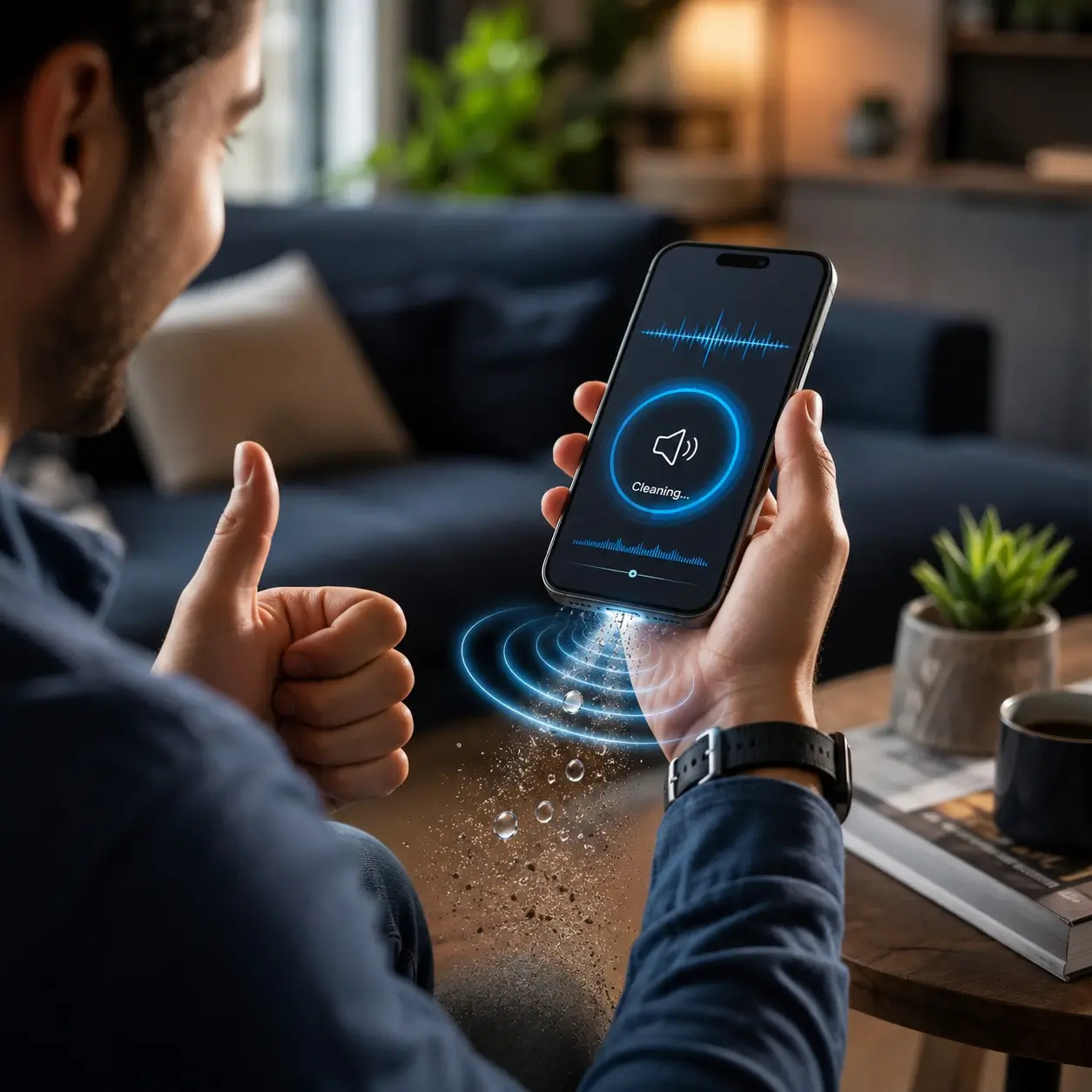
When water drops into your speaker grille or pocket lint muffles your audio, you need a solution that works immediately without risking hardware damage.
✓
Targeted Resonant Frequency
Unlike generic sound generators, our tool outputs exact 165Hz pulses specifically calculated to vibrate iPhone speaker diaphragms at maximum amplitude.
✓
Instant & Private
No app installs, registration, or data tracking. Launch the page, hit play, and clean your phone speakers within 60 seconds.
✓
Complete All-in-One Solution
Combines water eject tones, dust sweeps, manual frequency testing, and stereo balance diagnostics in a single place.
Universal Compatibility
Supported Laptop Brands & Models
MacBook Pro & Air
Dell XPS & Inspiron
HP Spectre, Envy & Pavilion
Lenovo ThinkPad & Yoga
ASUS ZenBook & ROG
Acer Swift & Predator
Microsoft Surface Laptop
Razer Blade
Samsung Galaxy Book
Got Questions?
Frequently Asked Questions
Everything you need to know about cleaning laptop speakers with sound.
Disconnect external headphones, turn your laptop volume to 100%, and click START on our Water Eject tool. Allow the 60-second acoustic cycle to finish completely.
Select "Water Eject" mode. The 140Hz tone causes strong cone excursion that breaks liquid surface tension and pushes water droplets out through the grille mesh.
Yes! Speaker drivers physically displace air when vibrating. Tuned low frequencies create rapid pressure waves that expel surface moisture and dust without opening the laptop.
Yes, acoustic water ejection is a proven physical principle. It uses cone displacement to push droplets out of speaker grille perforations.
Choose "Dust Removal" mode. The 220Hz-950Hz sweeping sound shakes loose stuck debris. Lightly brush the grille with a soft dry brush while the tone runs.
Muffled audio usually stems from liquid drops dried onto the grille mesh, dust buildup, or software audio driver misconfigurations.
The default 60-second cycle is optimal. If moisture droplets or muffled sound persist, repeat the cleaning cycle 2 to 3 times sequentially.
Only if it was a very light surface splash. For major liquid spills that penetrated the keyboard, shut down the laptop immediately to prevent internal short circuits.
Low frequencies around 140Hz with sub-bass harmonics produce maximum mechanical air displacement for laptop drivers. Sweeps between 220Hz and 950Hz are best for dust.
No. Our Web Audio synthesizer operates strictly within standard digital audio gain thresholds, making it completely safe for your laptop speaker diaphragms.
Explore More Utilities
Related Speaker Cleaning Tools
Eject water and clear dust from all your personal electronic devices.
iPhone Speaker Cleaner
Calibrated 165Hz acoustic ejection waves tuned specifically for micro-speaker grilles on all iPhone models.
Android Speaker Cleaner
Optimized acoustic sound waves for Samsung Galaxy, Google Pixel, Xiaomi, and OnePlus smartphone speakers.
MacBook Speaker Cleaner
Multi-driver audio frequencies calibrated for high-excursion sound systems on Apple Silicon MacBook Pro and Air.
Join Our Newsletter
and Stay Updated
Get the latest insights, updates, and strategies delivered to your inbox.