The Best Fluffy Pancakes recipe you will fall in love with. Full of tips and tricks to help you make the best pancakes.
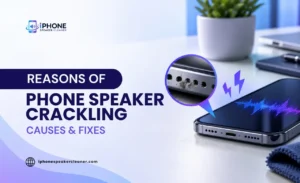
Why Is Your Phone Speaker Crackling? Causes and Fixes

If your phone speaker is crackling, buzzing, popping, or sounding fuzzy, the cause is usually one of a handful of things: dust in the speaker grille, moisture, the volume pushed too high, an audio routing issue, a software glitch, or in some cases, actual damage to the speaker itself. The tricky part is figuring out which one applies to you, since several of these problems can sound very similar.
Here’s what crackling actually sounds like compared to other audio problems, the most common causes behind it, and a practical sequence of steps to fix it, or at least figure out whether it needs a repair.
What Does a Crackling Phone Speaker Sound Like?
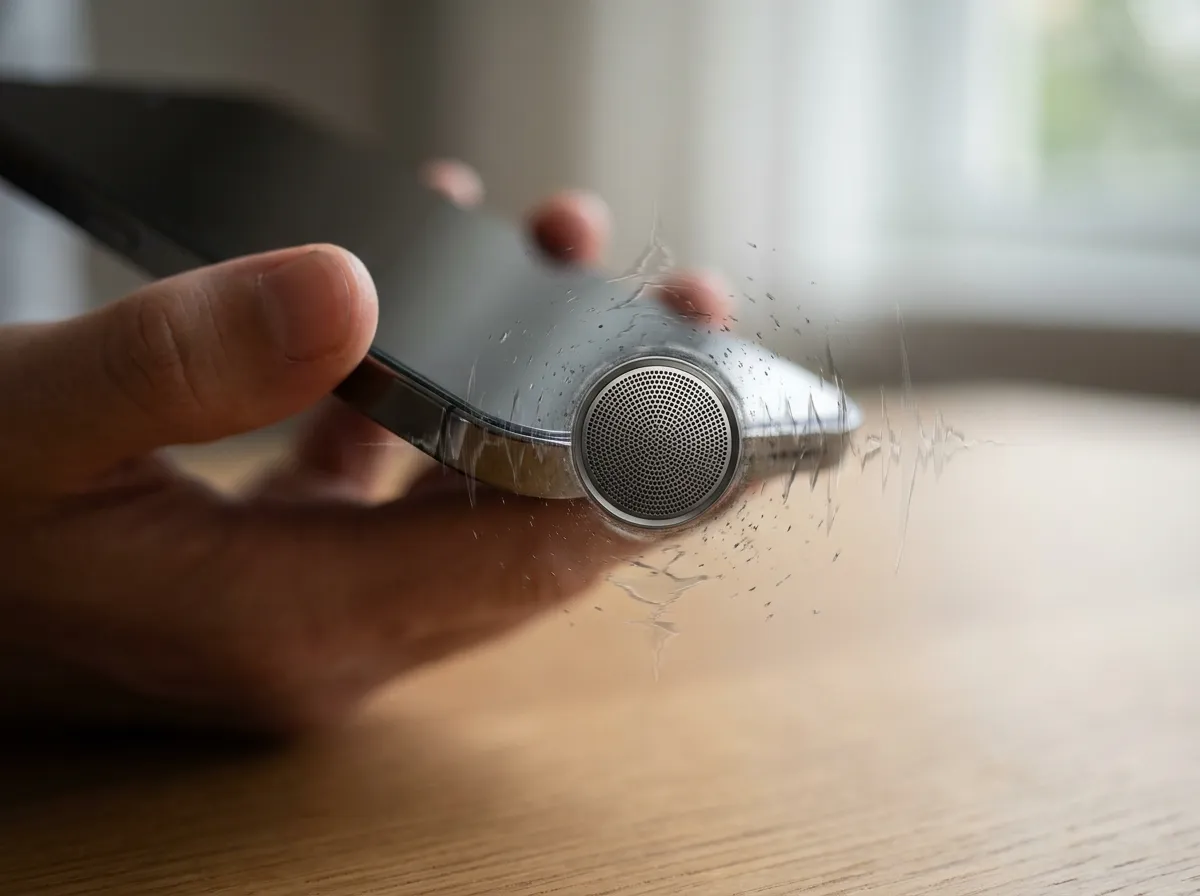
Before troubleshooting, it helps to know exactly what you’re hearing, since different symptoms often point to different causes.
- Crackling usually sounds like small, rapid pops layered over normal audio, often more noticeable during quiet passages or at higher volume.
- Buzzing is a more constant, low vibration sound, sometimes tied to a specific frequency or pitch.
- Static resembles background noise or hiss, similar to old radio interference.
- Popping is a sharper, more isolated sound, sometimes happening only once or twice rather than continuously.
- Fuzzy or distorted sound describes audio that lacks clarity, as if it’s being filtered or muffled while still playing at normal volume.
These symptoms can overlap, and it’s common for a single underlying issue, like dust or a loose connection, to produce a mix of them. Paying attention to when the noise happens- at low volume, high volume, during calls, or only in certain apps, will help later when narrowing down the cause.
Common Causes of a Crackling Phone Speaker
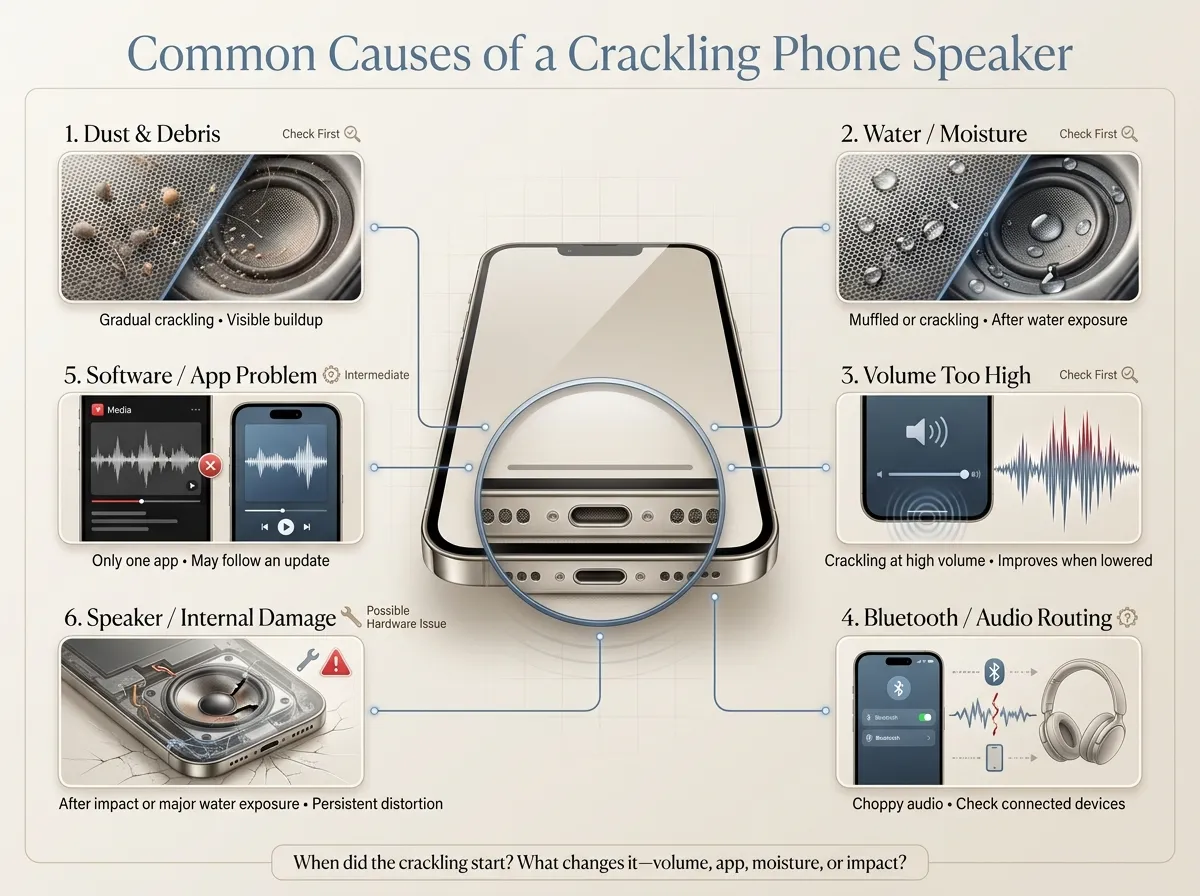
Crackling generally comes down to one of six categories: debris in the speaker, moisture, volume levels, audio routing, software, or physical damage. Here’s how each one typically shows up.
1. Dust and Debris in the Speaker Grille
Dust, lint, and small debris can settle into the speaker opening over time, especially if the phone spends a lot of time in a pocket or bag. When this buildup interferes with the speaker’s diaphragm.
It can create rattling or crackling sounds as the diaphragm vibrates against the trapped particles. This is one of the more common and fixable causes of crackling, though it’s not the only one.
Debris is worth checking first when:
- The crackling appeared gradually rather than suddenly
- The phone hasn’t been dropped or exposed to water recently
- You can see visible dust or lint around the speaker opening
2. Water or Moisture Inside the Speaker
Moisture from rain, sweat, splashes, or a brief drop in water can get into the speaker opening and interfere with normal sound output. This often produces a muffled or crackling sound rather than complete silence, since the speaker is still functioning but partially obstructed.
In many cases, this improves as the phone dries out naturally. However, lingering moisture or longer submersion can cause more persistent issues, including corrosion in some cases, which won’t resolve on its own.
3. The Volume Is Too High
Pushing the volume near its maximum can cause distortion, especially with lower-quality phone speakers or content already recorded at a high volume. This kind of crackling tends to appear specifically at high volume and disappear or improve noticeably when the volume is lowered.
It’s also possible for a minor existing issue, like light debris or an early speaker weakness, to only become audible once the volume is pushed high enough to reveal it. That’s part of why testing at different volume levels is a useful diagnostic step.
4. Bluetooth or Audio Routing Problems
Sometimes what sounds like a damaged speaker is actually an audio routing issue. Audio can sound choppy or crackly when it’s trying to stream somewhere other than the phone’s built-in speaker.
Here are a few things worth checking:
- Whether a Bluetooth device is still connected, even one that’s out of range
- Whether the connection to that device is weak or unstable
- Whether headphones are plugged in, or the phone thinks they are
Confirming nothing is connected is a quick way to rule this out before assuming the hardware itself is at fault.
5. A Software or App Problem
Occasionally a single app, or a temporary software hiccup, can cause crackling that has nothing to do with the speaker hardware. This is more likely if the crackling only happens in one specific app while everything else sounds normal, or if it started right after a software update.
Restarting the phone often resolves this kind of issue, since it clears out any audio processes that may have gotten stuck or misconfigured.
6. A Damaged Speaker or Internal Component
Physical damage from a drop, pressure, or prior liquid exposure can affect the speaker diaphragm or its internal wiring. Unlike dust or moisture, this kind of damage typically doesn’t improve with cleaning or drying time.
Hardware damage becomes a more likely explanation when:
- The crackling started right after a drop or impact
- It followed a significant water exposure rather than a light splash
- It’s paired with reduced volume, ongoing distortion, or inconsistent sound.
How to Fix a Crackling Phone Speaker
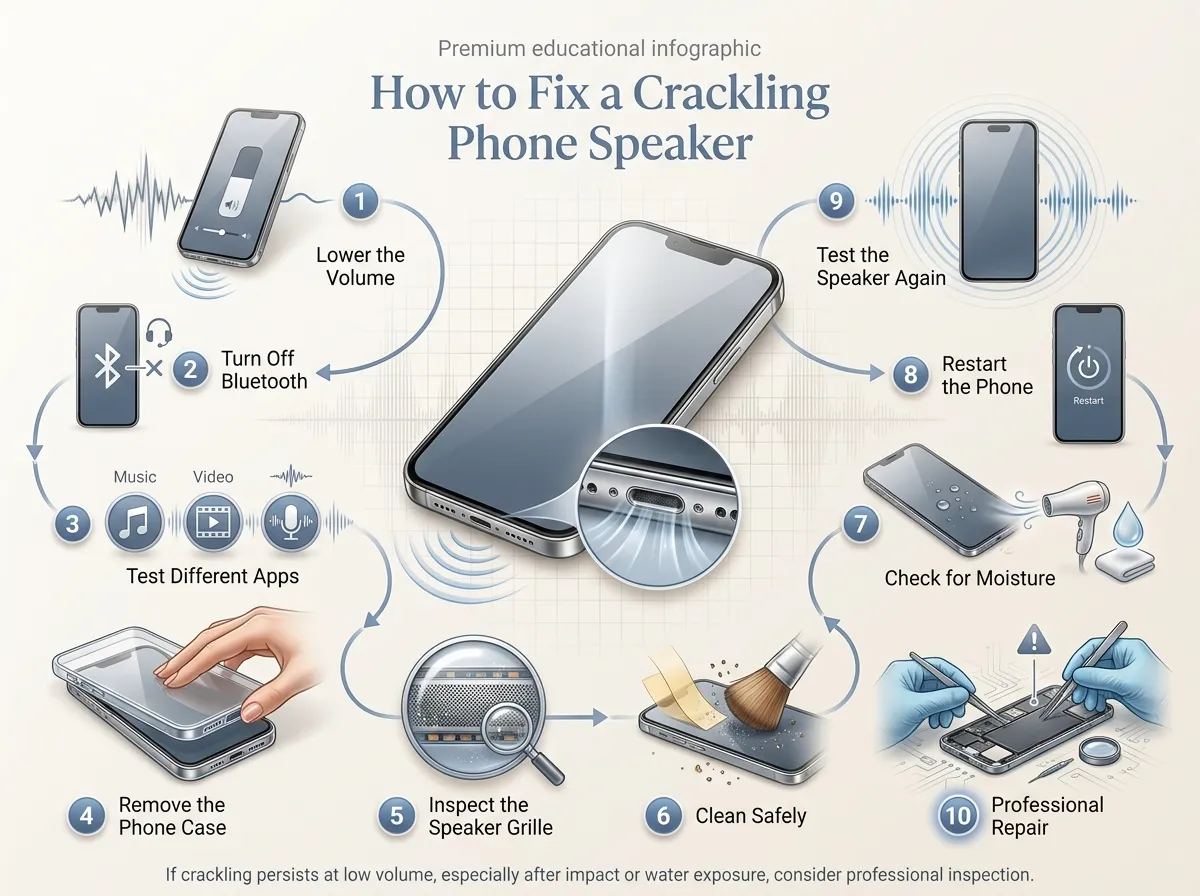
Working through these steps in order will usually help you identify the cause, even if it doesn’t fully resolve the problem on its own.
1. Lower the Volume and Test Again
Play audio at a lower volume than usual and listen closely. If the crackling disappears or improves significantly, high volume distortion is likely part of the issue.
2. Turn Off Bluetooth
Disable Bluetooth completely for a moment and test the speaker again. This rules out any interference from a paired or nearby device.
3. Test Different Apps and Audio Sources
Play sound from a few different apps, such as a music app, a video, and a voice memo. If the crackling only happens in one app, the hardware is likely fine, and the problem is app-specific.
4. Remove the Phone Case
Some cases can partially cover the speaker opening or vibrate against the phone, which can sound like crackling even though the speaker itself is fine. Testing without the case helps rule this out.
5. Inspect the Speaker Grille
Look closely at the speaker opening under good lighting for visible dust, lint, or debris. This helps confirm whether buildup is a likely contributor before you move on to cleaning.
6. Clean the Speaker Safely
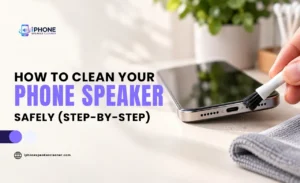
If you see debris, use a soft, dry brush or a piece of low-tack tape pressed gently over the opening to lift out loose particles. Avoid inserting anything sharp or rigid into the speaker holes, since this can push debris deeper or damage the fine mesh behind the grille.
7. Check for Water or Moisture
Think back over the last day or two for any splashes, rain, sweat, or accidental drops in liquid. If moisture is a possibility, give the phone time to fully dry before assuming the speaker is permanently affected.
8. Restart Your Phone
A simple restart clears many temporary software issues that can affect audio output, and it’s worth doing even if you suspect a physical cause, just to rule out the easier explanation first.
9. Test the Speaker Again
After making any change, play audio again and listen carefully across a normal range of volume. This confirms whether the issue actually improved or whether you’re dealing with something that needs further attention.
10. Consider Professional Repair
If the crackling persists after working through every step above, especially if it’s paired with reduced volume, distortion at low volume, or started after a drop or water exposure, it’s a reasonable point to consider professional inspection rather than continued troubleshooting at home.
Can Dust Cause a Phone Speaker to Crackle?
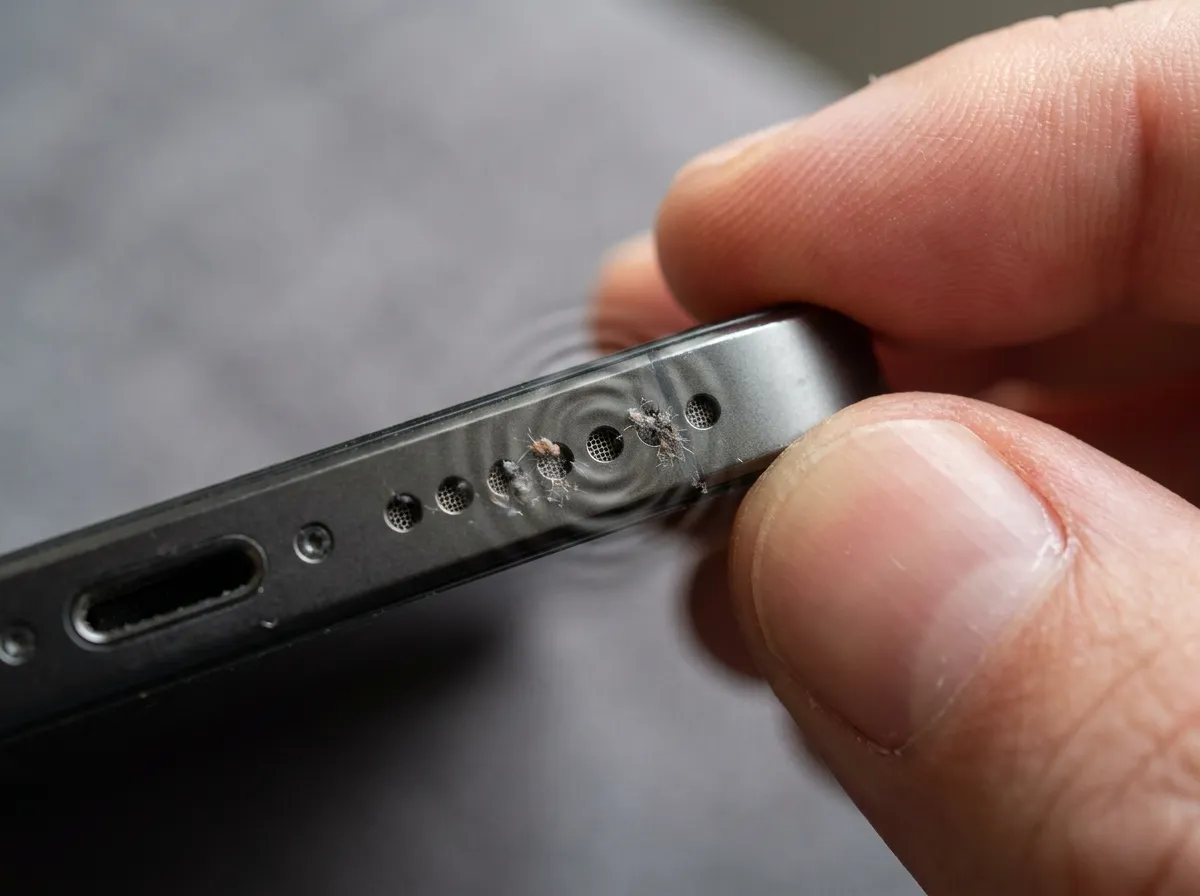
Yes, dust and debris are one of the more common causes of crackling, particularly when the sound appears gradually rather than suddenly. As particles settle around the speaker opening, they can interfere with how the diaphragm moves, producing a rattling or crackling effect that gets more noticeable at higher volumes.
That said, dust isn’t the cause of every crackling problem, and it’s worth ruling out volume, Bluetooth, and app-specific issues first, since those are just as common and often easier to confirm.
If dust or debris may be affecting your speaker, you can try the free iPhone Speaker Cleaner tool. It’s built around an audio tone designed to help with light debris and vibration-related issues, and it’s a reasonable step to try alongside the physical cleaning methods above, not a guaranteed fix on its own.
Can Water Make a Phone Speaker Crackle?
Moisture is another frequent cause of crackling, especially if the sound started shortly after rain, sweat exposure, or a splash. Water trapped in the speaker opening can interfere with the diaphragm’s movement in a similar way to dust, producing a crackling or muffled effect until the moisture clears.
If your phone still functions normally otherwise and you suspect moisture is the cause, an audio-based tone method may be worth trying, since certain vibrations can help nudge trapped water out of the opening as the phone continues to dry.
It’s important to be clear about the limits here. An audio tone cannot repair a torn speaker diaphragm, fix damaged internal components, reverse corrosion, or resolve genuine hardware failure. If crackling continues well after the phone has had time to dry, or if it’s paired with other symptoms like reduced volume or complete silence in one channel, moisture alone is less likely to be the explanation.
Why Is My iPhone Speaker Crackling?
The same general causes apply to iPhone speakers, with a few things specific to iOS worth checking first. Confirm the volume using the physical buttons and make sure the mute switch on the side of the phone hasn’t been accidentally flipped.
Check Control Center for any active Bluetooth or AirPlay connection, since audio can route to a paired device without it being obvious. If the crackling only happens in one app, that points toward a software or app-specific cause rather than the speaker hardware itself.
Inspect the speaker grille for visible buildup and use only soft, dry cleaning methods if you see debris. Restarting the phone is worth trying as well, since it resolves a fair number of unexplained audio glitches. If moisture exposure is a possibility, allow time for the phone to dry before assuming permanent damage, and if the crackling followed a drop or significant water exposure, hardware damage becomes a more realistic possibility.
Why Is My Android Speaker Crackling?
Android troubleshooting follows the same basic logic, though exact settings menus vary between manufacturers and Android versions. Start by checking media volume specifically, since many Android phones separate it from ringtone and call volume, and confirm nothing is connected over Bluetooth.
Test a few different apps to see whether the crackling is isolated to one of them, and check any sound or audio settings menu for equalizer changes or output settings that may have been adjusted accidentally. A restart resolves a good number of temporary audio issues on Android as well.
If the speaker opening shows visible dust or debris, clean it gently using a soft brush or tape method. And if the phone has recently been exposed to moisture, give it time to dry before assuming the speaker itself needs repair, since some Android devices also support water-eject tones that can help in these situations.
How to Tell If the Crackling Is From Dust or Hardware Damage
Certain patterns can help point toward a likely cause, though none of these are certain on their own.
- Crackling only at high volume may indicate distortion related to volume levels rather than a physical problem.
- Crackling after water exposure can suggest trapped moisture, especially if it started immediately after the exposure.
- Crackling in every app is more likely to point toward a hardware or system-level issue rather than one specific app.
- Crackling in only one app more likely suggests a software or app-specific cause.
- Crackling after a drop raises the possibility of physical damage to the speaker or its internal connections.
- Crackling that improves after cleaning suggests dust or debris was a meaningful contributor.
- Crackling that remains at low volume can suggest a deeper issue, since low-volume distortion is less commonly explained by simple debris or routing problems.
These patterns are useful starting points for narrowing things down, but they aren’t a substitute for actually working through the troubleshooting steps above.
Can You Fix a Crackling Phone Speaker at Home?
Some causes are genuinely manageable without professional help. Light dust, external debris, moisture-related symptoms in the early stages, and temporary software or audio routing issues can often be resolved with the steps covered in this piece.
Other problems typically require professional attention. A damaged speaker diaphragm, internal component damage, corrosion from prolonged moisture exposure, and persistent hardware failure aren’t things a cleaning method, physical or audio-based, can repair. It’s worth being honest with yourself about which category your situation falls into rather than repeating the same troubleshooting steps indefinitely.
When Should You Stop Troubleshooting?
At a certain point, continued DIY attempts stop being useful and professional inspection becomes the more sensible option.
Consider stopping and seeking repair if you notice:
- Visible physical damage to the phone or speaker grille
- Liquid damage beyond a light splash, particularly full submersion
- Crackling that persists at low volume even after cleaning and drying
- No improvement at all after working through the full troubleshooting sequence
- Complete loss of sound in the speaker
- Severe, constant distortion rather than occasional crackling
- Audio that repeatedly cuts out regardless of app or volume
Any of these suggest the issue is more likely physical than something cleaning or software fixes can resolve.
Final Steps to Get Clear Phone Speaker Sound
Getting to the bottom of a crackling speaker usually comes down to working through the possibilities methodically rather than guessing:
- Identify the pattern, including when and where the crackling happens.
- Test volume levels and check for any Bluetooth or audio routing issues.
- Inspect the speaker grille closely for visible debris.
- Clean the speaker safely if buildup is present.
- Test the speaker again after each change.
- Use the Phone Speaker Cleaner tool where dust or moisture may be involved.
- Seek professional repair if hardware damage seems likely.
Most crackling problems trace back to something straightforward, whether that’s volume, a Bluetooth connection, or a bit of buildup in the grille, and can be cleared up with a bit of methodical testing. If you’ve been through all of it and the crackling remains, the speaker cleaning tool at iPhone Speaker Cleaner is a reasonable next step to try before deciding a repair is needed.